Oculus Rift S – A Bittersweet Setup Experience (+ Tips, Unboxing & First Impressions)
A black screen after a firmware update cost me hours. What I tried to fix it on the Rift S, a second solution from our community, and my first impressions.
 By CasPublished Updated Video
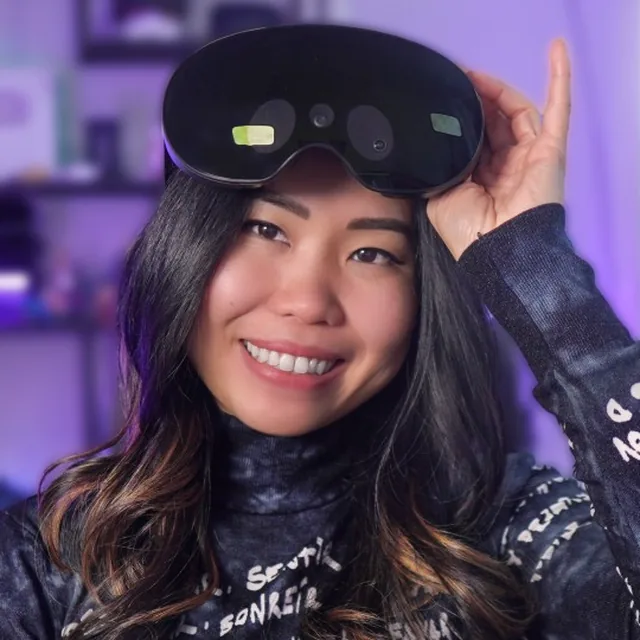
The Rift S is a new PC VR headset released alongside the Oculus Quest. Surprisingly it sells for the same $399, even though it has to be tethered to a PC. We got ours at launch about two weeks ago (Oculus sent us this unit), and our Oculus Rift S setup has been both sweet and bitter. Here’s what happened, what I did to make it less bitter, and my first impressions.
What’s in the box
- Manuals and two AA batteries for the controllers
- A DisplayPort to Mini DisplayPort adapter, which we use for our laptop
- Touch controllers, the same ones as for the Oculus Quest
- The Rift S
The sweet part
My first setup went pretty smoothly. I got a black screen when I first plugged it in, but replugging the DisplayPort cable fixed it, and I assumed I just hadn’t plugged it in properly.
My first impressions were very sweet. Text in the menu is so much sharper than on the original Rift. I started to like the LCD display too, because I see fewer god rays, probably because its contrast is lower than an OLED’s. The screen door effect is still visible, but noticeably less than on the original Rift and the Quest.
The bitter part: black screen after a firmware update
A few days later, I had a firmware update to install, and it messed something up for me. The black screen came back, and this time I couldn’t fix it. I could hear sound through the speakers, but there was no picture. Reseating the cables didn’t work either.
Online I found more people with the same problem, and also a Rift S troubleshooting guide on Reddit. I started doing everything on its list, and I got it working again. It took a few hours though, and I had to postpone this video by a week. If you’ve just bought a Rift S, that isn’t great, and I’d be really sad to see it scare people away from VR.
What I did to fix it
I don’t remember every step, but these are the last things I tried:
- Updated all my drivers, from the NVIDIA graphics card drivers to the drivers for my PCIe card (the Inateck card that Oculus recommends). This didn’t solve it, but I have a feeling it helped.
- Reinstalled the Oculus software in safe mode, following the guide. After this clean install I had to set up the Rift S again. The cable setup now worked, but I got stuck at the sensor setup, which kept reporting a problem with my sensors.
- Moved the USB cable. I unplugged it from the Inateck PCIe card and put it in a USB 3.0 port on my motherboard. Then I got through the sensor setup, the firmware updated again and it worked. I’m now on firmware 1.6.7.
I’m not sure exactly which step did it. I still get the occasional black screen, but I can usually fix it by replugging the cables. It’s a really weird issue, and I hope it gets fixed soon.
Another Oculus Rift S setup problem: Ztreak’s fix
Ztreak, one of our Patrons and a moderator of our channel, had a very different problem. His Oculus software detected the cables correctly, but after a firmware update, it could no longer find the Rift S once it was plugged in, or it would reboot itself.
The cause was a special character in his Windows username. He added a new local Windows user called “test”, gave it administrator privileges, installed the Oculus software there, and had no more problems.
If you still have problems
Try the steps above first. If that doesn’t help, you might have a USB bandwidth problem: unplug every other USB device except your keyboard and mouse, then plug in the Rift S.
Judging by these problems, I think it’s related to software and not hardware, which would be really good news since that’s solvable. Oculus has been helping users on Reddit, so they know about it and are working on a fix. Not everyone has this problem either. It seems to depend a lot on your individual situation, and on luck.
To prove that point, I also set up the Rift S on my MSI laptop with the included adapter, and it worked straight away without any problems.
First impressions of the Rift S
On a laptop, the Rift S is kind of a revelation, because there are no external sensors to set up like with the original Rift. We move headsets around and travel a lot, so being able to plug it in and go is great.
What I like:
- Tracking is pretty good overall without external sensors. A 360 setup with external sensors is still better, but the Rift S does a decent job with its 5 sensors. It even works with our green screen, where some Windows Mixed Reality headsets had tracking problems.
- Passthrough lets you see the real world through the headset’s sensors. It’s incredibly nice for a quick peek at what people around you are doing, or for a sip of a drink without taking the headset off.
What I don’t like:
- The microphone is way too loud. I had to turn it down manually in Windows, which you can also do in the Rift menu. Even then I couldn’t use it for our videos, and with the original Rift I felt I could.
- There’s no physical IPD adjustment, because it has a single LCD panel. That could make it hard for some people to see clearly. There’s a digital adjustment, but it isn’t as good. I haven’t noticed a problem with my IPD of around 59mm, but I measured that myself, so I’ll get it measured at a local glasses store before our full review.
Would I recommend the Rift S yet?
I’m saving my final say on the resolution, refresh rate and other important things for the full review, after more time with the headset. So far the headset itself has left a sweet impression, and the setup a bitter one. If you get a Rift S and run into problems, try these steps first before you give up on it.