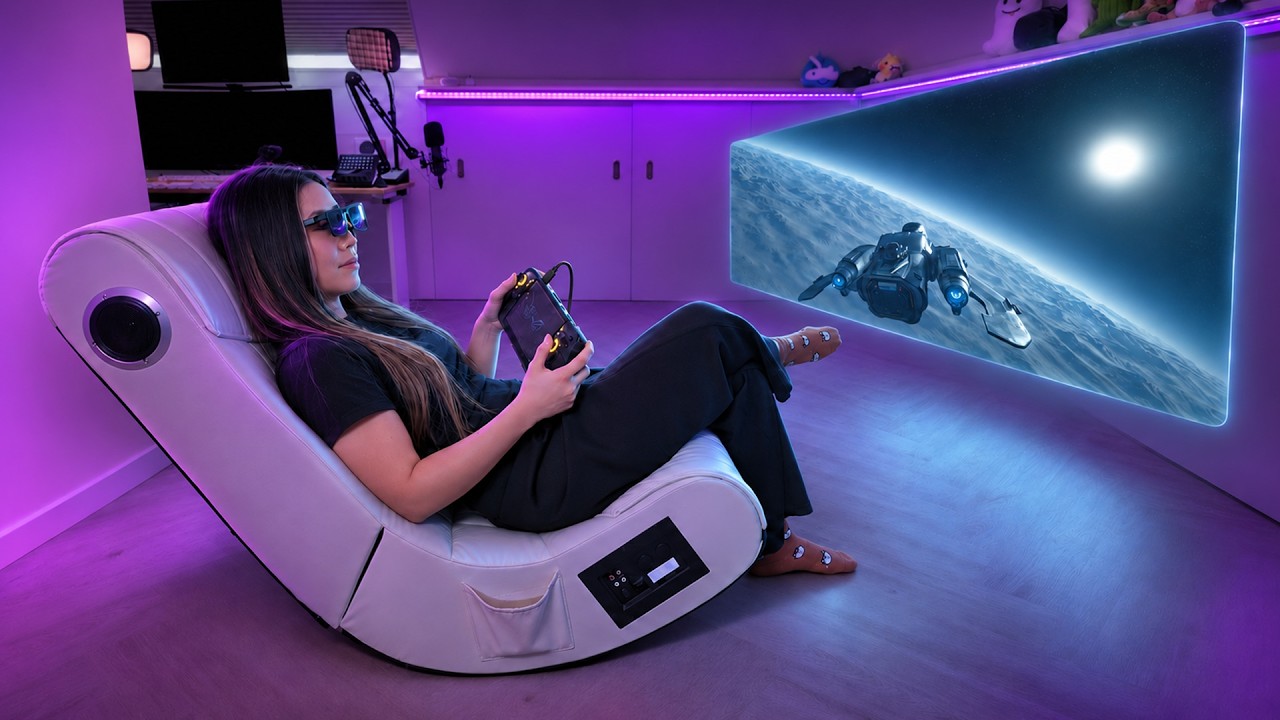
A RESIZABLE 330″ OLED TV In Your Pocket! XREAL Air + Beam
After a few weeks with the XREAL Beam and XREAL Air glasses: the three screen modes, what it connects to, what bugged me and who should get one.
 By CasPublished Updated Video + article4 min read
A few weeks ago I tried the XREAL Beam for about 30 minutes. Since then I’ve used it for a few weeks, so this is my XREAL Beam review based on real use. The Beam is an accessory for the XREAL Air glasses that lets you connect them to nearly any device and unlocks features you couldn’t use before. My earlier video covers the basics of the glasses and the Beam. This one is about my own experience.
XREAL sponsored this video. That supports the channel, but it doesn’t change my opinions.
What’s in the box
The Beam comes in a compact box with a simple user guide. Pre-orders also got a free USB-C to USB-C cable. The XREAL Air glasses aren’t included, and you need them, so buy them separately if you don’t have a pair.
The glasses put a virtual screen right in front of your eyes. I mostly use them to read manga mirrored from my iPad and to play games on my Switch, wherever I like.
Why the Beam exists
On their own, the XREAL Air glasses only work with certain devices. The Beam fixes that and adds features on a wide range of devices.
At first glance you could mistake it for a power bank, and it weighs 153 grams. It has 4GB of RAM and 32GB of storage, so it can run on its own, with Bluetooth 5.0 and Wi-Fi built in.
- Bottom: two USB-C ports. USB-C Out goes to the glasses, USB-C In goes to your device.
- Right of the silver stripe: the power button. Press it and an LED strip shows the battery level.
- Right side: volume buttons.
- Left side: the Mode Switch.
The three screen modes
- Smooth Follow. The screen follows your gaze all the time. This is the default, and it also works with the glasses without the Beam.
- Side View. The screen shrinks into one of the four corners so your view straight ahead stays clear. Good for watching a video while you do something else.
- Body Anchor. My favourite. You anchor the screen anywhere around you and use the middle buttons to change its size and distance. XREAL calls this the spatial experience.
In Body Anchor you can go from a tiny 28-inch screen up to a massive 385-inch one, and how far away you can place it depends on the size you choose. I like mine at about 120 inches and around 4 metres away.
Before the Beam, Side View and Body Anchor weren’t available on many devices, like game consoles. I assumed the Beam runs XREAL’s Nebula platform, but it doesn’t: it brings those features to devices that can’t run Nebula or can’t connect well to the glasses. XREAL said future firmware updates would add more, like installing your own apps on the Beam. If you start the Beam with only the glasses connected, you get a small menu with tutorials and some settings.
What I used it with
A second monitor for your laptop
Pinning a screen in place sounds minor, but it’s useful. You can put the virtual screen right above your real laptop screen, set it as an extended display, and you’ve got a dual monitor setup you can take anywhere. Phones and tablets that support external displays work the same way.
You only get one virtual screen, though. Multiple screens might come in an update, but that wasn’t confirmed. For Windows and Mac, XREAL was working on a separate multi-screen option that doesn’t need the Beam: less flexible, but worth trying. Nebula for Mac is on XREAL’s app page.
Consoles and handhelds
- USB-C with DisplayPort output works, including the Nintendo Switch and Steam Deck, with the included cable.
- HDMI-only devices like the PS5 and Xbox need an HDMI to USB-C cable, which you may have to buy. On these consoles the glasses only mirror the screen, but with the Beam you can still pin that screen anywhere. It’s like a huge portable game screen you move around with telekinetic powers.
Wireless streaming
The Beam also streams wirelessly from devices that support DLNA, Miracast and AirPlay. I used it with my iPad to read manga in bed and it works great. On Windows, go to Settings and choose to connect to a wireless display. Streaming wirelessly also means you can keep the Beam charging while you use it.
What you might not like
- No copyrighted content over wireless (like Netflix) for now. XREAL was working on it. Wired, it works.
- Field of view limits screen placement. Put a giant screen too close (say 1 metre) and the edges get cut off. Choose a bigger size at a suitable distance and you still get a big screen. It’s like walking too close to your TV. We’ll have to wait for glasses with a wider field of view.
- A little fan noise. Not bothersome unless it’s right next to your ears.
- No extra charging port. The battery gives you about 3.5 hours, which may not be enough for a long trip, and it doesn’t charge your connected device. It does fast charge to 50% in about 30 minutes, so a power bank helps. Wireless streaming avoids the issue.
- Slow to detect devices now and then. Restarting or reconnecting usually fixes it.
- Frame drops. In my early access tests I had occasional frame drops in Body Anchor mode during intense Zelda scenes. XREAL has fixed that since. If you see it in other games, try turning off Spatial Display Enhancement in the settings and report it to XREAL.
What I like
XREAL has a good track record with updates, so I’m confident the Beam will keep improving. Their software stabilises the virtual screen so it doesn’t shake or bounce, and that’s still true with the Beam. It connects to most devices I use, it just works, and as far as I know it was the only video glasses setup that lets you pin the screen.
I love being able to play in different positions. Lying down while playing is super comfortable, and I’ve played a ton of Zelda this way. I’m a bit addicted.
XREAL Beam review verdict: price and who it’s for
At launch the Beam was $109 on pre-order, shipping at the end of July, with a retail price of $119 including a USB-C cable. The XREAL Air and Beam bundle was $488.
Whether it’s worth it depends on what you need. If you love the Body Anchor feature or want a more portable setup, the Beam is a good choice. Its software is still early, so it may take a few updates to reach its full potential.
For me, as an XREAL Air user who games on the Steam Deck and Switch, it’s become a must-have. Chary and I often play single-player games at the same time, and we only have one big TV. We’re both so hooked on Zelda that we bought it twice to avoid taking turns. In our gaming household, the Beam is a winner.