XREAL Beam Pro: CHEAP Spatial Computing for ANDROID is Here… But…
The $199 XREAL Beam Pro puts your Android apps around you through XREAL glasses. Specs, how it works, the cons, the pros and its 3D camera.
 By CasPublished Updated Video + article5 min read
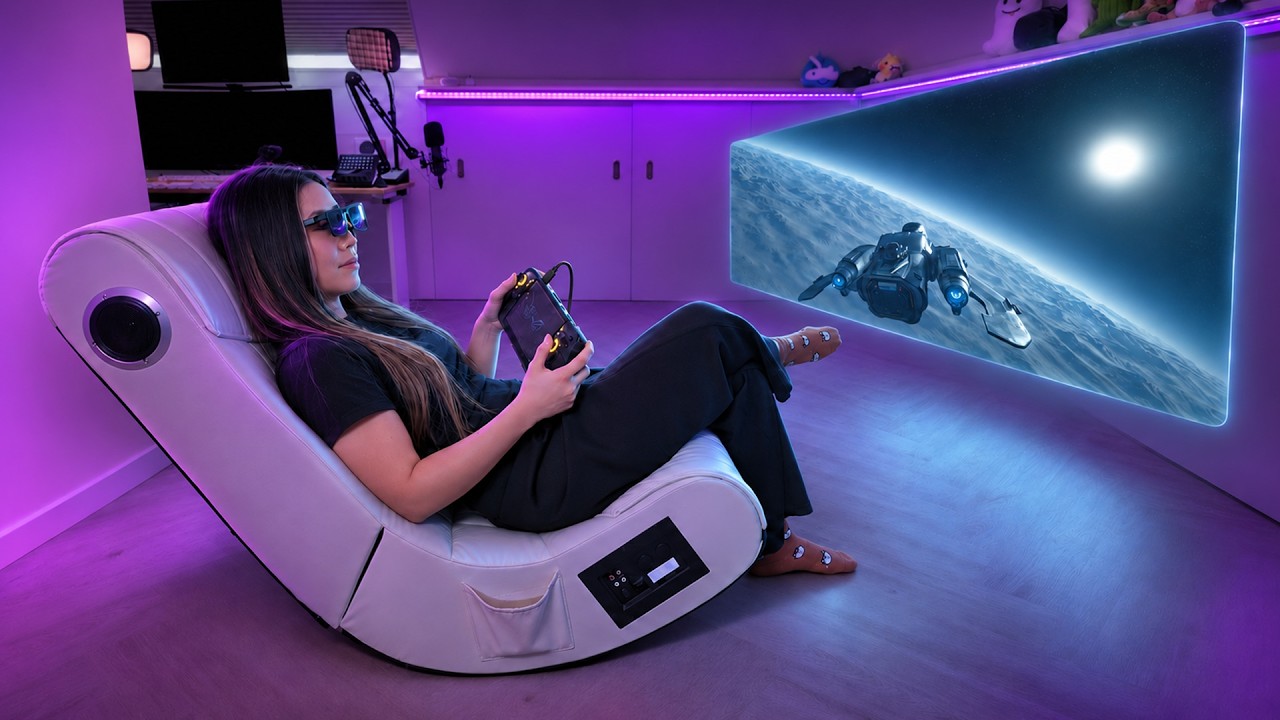
This is not a phone. The XREAL Beam Pro is a $200 device that makes spatial computing on Android a reality: connect it to XREAL AR glasses like the Air 2 and you can throw your Android 2D apps into your space, resize them and move them wherever you want. Picture checking email while watching YouTube, or gaming while chatting on Discord, from any comfy position. While Meta works on similar tech for its Quest headsets, this is the first time we can place Android apps around us in a glasses form factor. The concept is cool. The execution could use some work.
PrismXR sponsored one segment of this video, for its wearable battery pack. That pays for our time, not for the verdict.
Why a Beam Pro instead of your phone
Before the Beam Pro, you could plug XREAL glasses into a device and mirror its screen. On a Steam Deck that looks like playing on a big TV. On a phone it was limiting: you only got one screen and couldn’t control it, it just followed your head around.
On some devices the XREAL app let you fix a screen in your space, but it drained your phone’s battery much faster and not every device supported it. Compatibility issues made it confusing. So XREAL made a device that’s guaranteed to work and does more. It isn’t meant to replace your phone but to free it up for other things. I think that’s a smart move, and it’s exciting to see Android spatial computing grow. At $200, though, I didn’t expect it to be super powerful.
The PrismXR Carina W1 battery pack
The sponsored segment: the Carina W1 is a wearable battery pack you can wear on your waist or across your body, so you can charge hands-free while you move around in VR or AR. It fits comfortably, and a magnetic buckle makes it easy to attach and detach. It has 10,000mAh, supports 30W fast charging and can add up to 6 hours to a session, depending on use. It works with any USB-C device, like a Quest 3, a gaming console, a 360 camera or the Beam Pro. I’ve been using it, and it’s nice not having to stuff a power bank into my tiny pockets.
XREAL Beam Pro specs and price
In the box: the Beam Pro, a guide and documentation, and an SD card ejector tool.
- Chip: Qualcomm Snapdragon spatial companion processor, a lower-end but relatively new 4nm chipset found in budget Android phones
- Screen: 6.5-inch 2K LCD
- Connectivity: Wi-Fi 6, Bluetooth 5.2, and 5G or Wi-Fi-only versions
- Battery: 4,300mAh with 27W fast charging
- Durability: IP54 water and dust resistance
- Sensors: proximity, ambient light, accelerometer, gyro and compass
- Cameras: dual 50-megapixel ultra-wide cameras, 50 mm apart for 3D photos and video, plus an 8-megapixel selfie camera
- Memory and storage: 6GB/128GB or 8GB/256GB, with microSD up to 1TB
- Software: Android 14 with the Google Play Store
- Price: from $199, which I think is surprisingly affordable
For the spatial features you also need XREAL glasses, which start at $299 for the first generation. What you see depends on the glasses. I use the XREAL Air 2 Pro, with two Sony OLED panels and a 46-degree field of view. With the Beam Pro it gives a full HD screen at 90Hz with three degrees of freedom (3DoF). The XREAL Air 2 Ultra was coming soon when we made this video and was set to be the only one with six degrees of freedom on the Beam Pro.
What you can do with it
On its own, the Beam Pro looks and works like an Android phone. Two things are different: it doubles as a 3D camera, and when you connect XREAL glasses it launches NebulaOS, which spatializes your Android apps.
The spatial mouse
The Beam Pro turns into what XREAL calls a spatial mouse: a laser pointer you aim by moving the device, while its screen shows a touchpad.
- A big home button opens the menu. Long press it to recenter the pointer.
- Shortcuts at the top: an anti-miss-touch lock against misclicks, a camera button for QR codes, a recording button and a screenshot button.
- The touchpad takes taps and swipes for scrolling, and it works very smoothly.
- Swipe up to switch between open apps, like Alt-Tab on a PC. Swipe down for battery and time.
A Bluetooth keyboard and mouse also work. The keyboard works perfectly. The mouse has quirks in some apps, like not selecting text or right-clicking, and then you can fall back on the spatial mouse.
Apps, windows and modes
Your apps appear in a neat menu that I’m sure took inspiration from the Apple Vision Pro. You install apps from the Play Store and launch them from there. For now you can only multitask with two apps at a time. XREAL said they’re working on more, but with this chip I don’t expect to run as many as on a Quest 3 or Vision Pro.
The second app goes to the side, with an option to swap sides. At the top right you can pick medium or large, turn on a wide screen (beta), go back or close the app, and you drag windows by the bar in the middle.
There are two modes. Smooth Follow makes the screen follow your head. Body Anchor fixes it in one spot. Because my glasses are 3DoF, you can’t lean in for a closer look, and when you walk, the screen comes with you at the angle you set.
The cons
I wrote the whole script for this video on this setup, and I ran into a few things.
- The software feels early. There’s no native XR content like on Vision Pro or Quest 3. When we made this video there were two apps made for the glasses, and they were pretty gimmicky.
- Android apps get buggy. They weren’t built for spatial use. I had apps not opening links, not resizing properly, and my fair share of crashes. Restarting the XREAL app usually fixes it, but it makes me hesitant to use anything that doesn’t auto-save. That’s somewhat expected, since XREAL built a new system on top of Android with third-party apps it doesn’t control.
- The virtual keyboard won’t go away with an external keyboard connected, even after turning it off in settings. That’s distracting while typing.
- Apps don’t resize responsively. Set an app to large and it just zooms in instead of getting more room for content.
- Full HD is the maximum. Software can’t fix that. Apps render in a compact view, so Google Docs and Discord feel cramped, like a small tablet instead of a 4K monitor. For movies and social media it’s fine, and since the screen is so close to your face, Netflix feels like your own cozy cinema, minus the overpriced snacks and sticky floor.
- The field of view is small. A large window goes outside it, so I work in medium.
- Battery life is about 2 to 3 hours. There are two USB-C ports, one for the glasses and one for charging, so you can power it while you use it.
The keyboard and resizing issues could be easy software fixes.
The pros
- Stable screens. They don’t shake like some similar glasses. After about an hour of work the screen may drift a little, and an easy calibration fixes it.
- Keyboards, mice and controllers. Many keyboards I tried worked right out of the box, and you can connect a game controller and play Xbox Game Pass or similar apps.
- All of Android. The apps you already use are there, so your workflow or gaming is easy to set up. It supports DRM, so Netflix and other streaming services work. Building on a mature OS like Android is a smart move by XREAL.
- Clear enough to work on. Sharpness depends on your glasses and things like face shape, but on the Air 2 Pro it was clear and smooth to write on.
- Good for movies, with good colors and sound aimed at your ears with almost no sound leak, so I can use it on a plane without people hearing what I hear.
- Body Anchor mode. Even with 3DoF it feels like spatial computing, because my screen stays in place. It’s not the immersion of a 6DoF headset like the Vision Pro, but the price difference is big.
The spatial camera
XREAL calls it a native spatial camera: the cameras sit 50 mm apart on purpose, so the 3D effect is more comfortable and pops out more. Viewed in the glasses, the 3D photos and videos are definitely impressive.
It struggles in darker places and with fast movement, though. There’s a slight delay when you take a picture, so my friend’s super cute new puppy came out blurry, with a weak 3D effect that was a bit uncomfortable to look at. Moving subjects can work: photos of me and my friend bouldering came out sharp with beautiful 3D.
I love the hidden Memory View feature in the Photos app, which shows all your spatial media around you in 3D. For now you mostly look at thumbnails, but it has a lot of potential. For normal photos and videos, I’d still use my phone, because its camera is better.
Is the XREAL Beam Pro worth it?
The Beam Pro has quirks, from early software to some hardware limits, and it feels like an early adopter product instead of a finished one. But it already gives you a good way to see your Android apps on a bigger screen with a very portable setup, which is useful for light work and entertainment on the go. If you don’t want to bend your neck down to your phone, it can be a more comfortable option. Check its limits against what you need first.
The software has a lot of potential. XREAL is a smaller company than Apple or Meta, so I think it’ll be hard to realize all of it without help from Google and the upcoming Android XR platform, and I hope they work together eventually. Right now it isn’t as integrated as the Vision Pro, and the Quest 3 may be more capable in the long run, but those are heavy headsets. These glasses are a much more comfortable alternative, even if they’re not as powerful yet. Software is key, and I’m very interested to see where XREAL takes this.